> ## Documentation Index
> Fetch the complete documentation index at: https://docs.embeddables.com/llms.txt
> Use this file to discover all available pages before exploring further.
# Embed in your WordPress site
> How to publish your Embeddable in your WordPress website
You can use the 2-part embed code to easily embed your Embeddable in your WordPress website. The method you use will depend on whether you're using WordPress.com or WordPress.org, and your technical comfort level.
Looking for other ways to publish your Embeddable? Check out the [Publish to your site](/features/publish-to-your-site) guide.
## WordPress.com vs WordPress.org
Before we begin, it's important to understand the difference:
* **WordPress.com**: A hosted platform with different plan levels (Free, Personal, Premium, Business, Commerce)
* **WordPress.org**: Self-hosted WordPress where you have full control over your site
## Embedding in WordPress.com
The ability to add custom code depends on your WordPress.com plan:
* **Free, Personal, and Premium plans**: Limited code support
* **Business and Commerce plans**: Full code support
If you're on a limited plan, you'll need to upgrade to add custom code.
Head to the Embeddable in the [Web App](https://app.embeddables.com/), click **Embed Code** in the top-right corner,
and you'll see the two-part embed code in the pop-up modal.
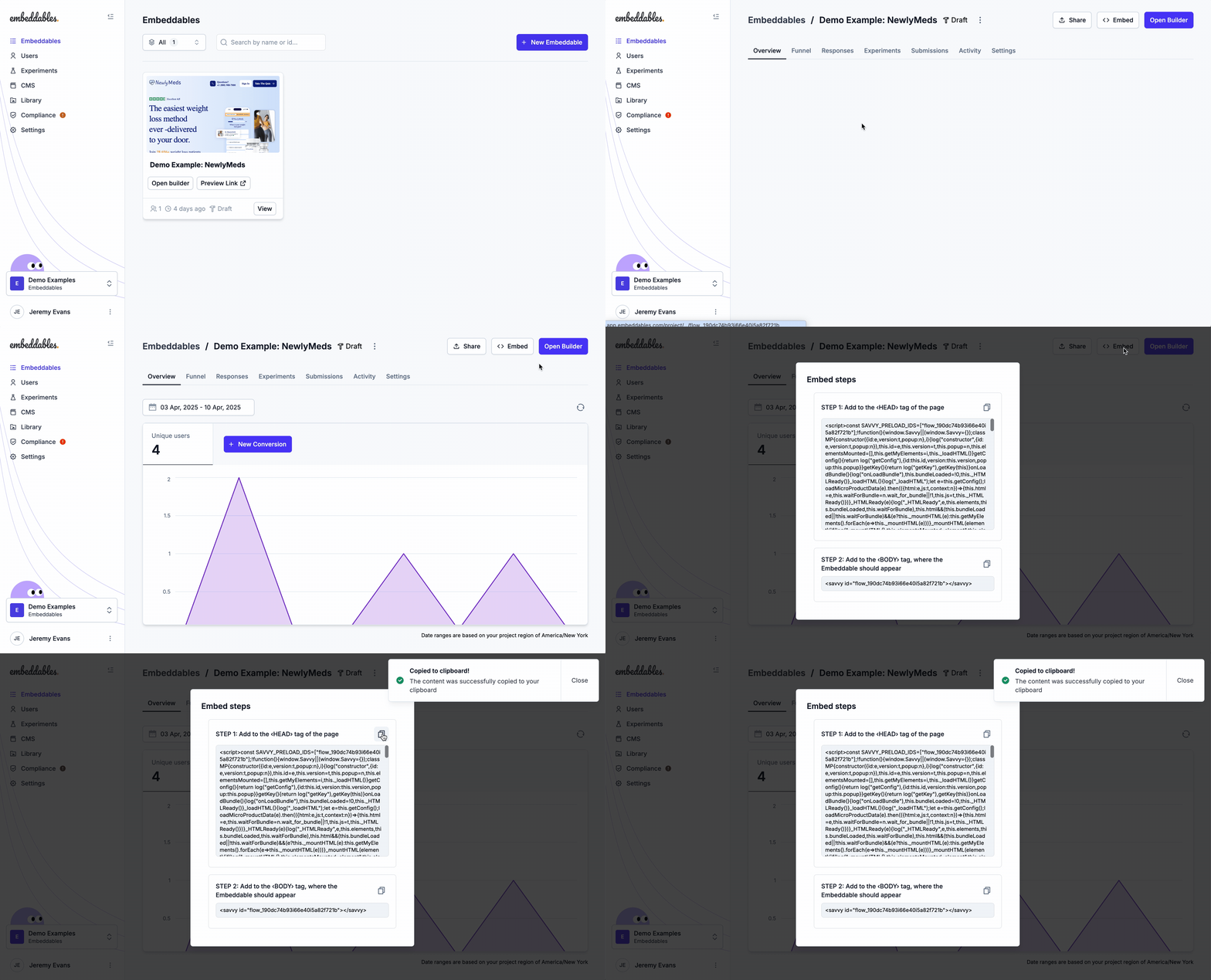 For WordPress.com sites, you have two options:
### Option 1: Using the Custom HTML Block (Easiest)
1. Edit the page where you want to add the Embeddable
2. Add a Custom HTML block
3. Paste both parts of the embed code into the block
4. Save and publish your changes
### Option 2: Using the Customizer (More Control)
1. Go to Appearance → Customize
2. Click on Additional CSS
3. Add the first part of the code (the script) in the CSS section
4. Save and publish
5. Add the second part (the `` tag) where you want the Embeddable to appear using a Custom HTML block
## Embedding in WordPress.org
Head to the Embeddable in the [Web App](https://app.embeddables.com/), click **Embed Code** in the top-right corner,
and you'll see the two-part embed code in the pop-up modal.
For WordPress.org sites, you have several options based on your technical comfort level:
### Option 1: Using a Plugin (Easiest)
1. Install and activate the "Insert Headers and Footers" plugin
2. Go to Settings → Insert Headers and Footers
3. Paste the first part of the code (the script) in the "Scripts in Header" section
4. Save changes
5. Add the second part (the `` tag) where you want the Embeddable to appear using a Custom HTML block
### Option 2: Using Theme Files (Intermediate)
1. Install and activate a child theme
2. Edit your child theme's `functions.php` file
3. Add the first part of the code using the `wp_head` hook
4. Add the second part (the `` tag) where you want the Embeddable to appear using a Custom HTML block
### Option 3: Direct File Editing (Advanced)
1. Access your site files via FTP or your hosting control panel
2. Edit your theme's `header.php` file
3. Add the first part of the code just before the closing `` tag
4. Add the second part (the `` tag) where you want the Embeddable to appear using a Custom HTML block
## Need to embed in a different platform?
How to publish your Embeddable to your site
How to publish your Embeddable to your Webflow site
How to publish your Embeddable to your Framer site
How to publish your Embeddable inside a React app
How to publish your Embeddable inside a React Native app
## Troubleshooting
### The Embeddable isn't showing up on my WordPress site
Make sure you've:
1. Added the first part of the code correctly (in the header or using a plugin)
2. Published your changes
3. Checked that the Embeddable is pushed live in the Embeddables Builder (if not then you can add `?savvy_flow_version=latest` to the URL to view the latest version)
4. Cleared your browser cache and refreshed the page
### Need more help?
For WordPress.com users, check out the [WordPress.com support documentation](https://wordpress.com/support/code/).
For WordPress.org users, you can:
* Check the [WordPress Codex](https://codex.wordpress.org/)
* Visit the [WordPress Support Forums](https://wordpress.org/support/forums/)
* Contact our support team for assistance with the Embeddable specifically
For WordPress.com sites, you have two options:
### Option 1: Using the Custom HTML Block (Easiest)
1. Edit the page where you want to add the Embeddable
2. Add a Custom HTML block
3. Paste both parts of the embed code into the block
4. Save and publish your changes
### Option 2: Using the Customizer (More Control)
1. Go to Appearance → Customize
2. Click on Additional CSS
3. Add the first part of the code (the script) in the CSS section
4. Save and publish
5. Add the second part (the `` tag) where you want the Embeddable to appear using a Custom HTML block
## Embedding in WordPress.org
Head to the Embeddable in the [Web App](https://app.embeddables.com/), click **Embed Code** in the top-right corner,
and you'll see the two-part embed code in the pop-up modal.
For WordPress.org sites, you have several options based on your technical comfort level:
### Option 1: Using a Plugin (Easiest)
1. Install and activate the "Insert Headers and Footers" plugin
2. Go to Settings → Insert Headers and Footers
3. Paste the first part of the code (the script) in the "Scripts in Header" section
4. Save changes
5. Add the second part (the `` tag) where you want the Embeddable to appear using a Custom HTML block
### Option 2: Using Theme Files (Intermediate)
1. Install and activate a child theme
2. Edit your child theme's `functions.php` file
3. Add the first part of the code using the `wp_head` hook
4. Add the second part (the `` tag) where you want the Embeddable to appear using a Custom HTML block
### Option 3: Direct File Editing (Advanced)
1. Access your site files via FTP or your hosting control panel
2. Edit your theme's `header.php` file
3. Add the first part of the code just before the closing `` tag
4. Add the second part (the `` tag) where you want the Embeddable to appear using a Custom HTML block
## Need to embed in a different platform?
How to publish your Embeddable to your site
How to publish your Embeddable to your Webflow site
How to publish your Embeddable to your Framer site
How to publish your Embeddable inside a React app
How to publish your Embeddable inside a React Native app
## Troubleshooting
### The Embeddable isn't showing up on my WordPress site
Make sure you've:
1. Added the first part of the code correctly (in the header or using a plugin)
2. Published your changes
3. Checked that the Embeddable is pushed live in the Embeddables Builder (if not then you can add `?savvy_flow_version=latest` to the URL to view the latest version)
4. Cleared your browser cache and refreshed the page
### Need more help?
For WordPress.com users, check out the [WordPress.com support documentation](https://wordpress.com/support/code/).
For WordPress.org users, you can:
* Check the [WordPress Codex](https://codex.wordpress.org/)
* Visit the [WordPress Support Forums](https://wordpress.org/support/forums/)
* Contact our support team for assistance with the Embeddable specifically