> ## Documentation Index
> Fetch the complete documentation index at: https://docs.embeddables.com/llms.txt
> Use this file to discover all available pages before exploring further.
# Automatically set default payment methods in Stripe for subscriptions
> How to set up a webhook in Stripe so that, when a payment method is first added to a customer's subscription, it is automatically set as the default payment method.
This guide is only relevant for **Subscription** checkout mode.
For **Payment** mode, all you need to do is set "Setup Future Usage" to "Off Session" in the Stripe component options.
For **Setup** mode, you don't need to do anything - payment methods are automatically set as default in this mode.
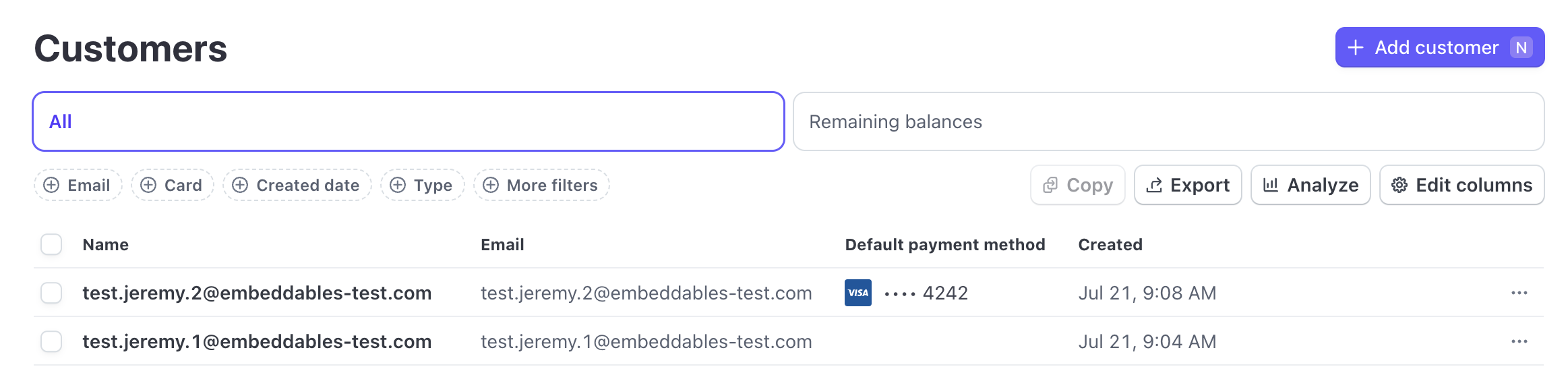
When a customer enters their credit card or other payment method for a subscription in Stripe, that payment method is not automatically set as the default payment method.
Without this, the next payment in the customer's subscription may fail, unless you manually set the payment method as the default in your Stripe Dashboard.
This guide explains how to set up a Webhook to ensure that when a new payment method is added to a Stripe customer, it is automatically set as the default payment method.
## Adding a webhook to automatically set the default payment method in Stripe
{" "}
Note: This requires a Stripe component that is set up to create{" "}
subscriptions
* Log in to your Stripe Dashboard.
* Open the Workbench.
* Navigate to the Webhooks tab.
* Click + Add destination.
* Make sure "Events" is set to as "Your account".
* Make sure "API version" is set to "Your current version".
* Under "Events", find the `payment_method.attached` event and select it.
* Click Continue.
* Make sure "Webhook endpoint" is selected and click Continue.
* Grab your Project ID from the URL in the Embeddables Web App - it's the ID after `/project/` that starts with `pr_`.
* In the "Endpoint URL" field in Stripe, paste the following URL, replacing `` with your Project ID:
```
https://webhooks.embeddables.com/webhooks/stripe/payment_method.attached?project_id=
```
If you're setting up a webhook for Stripe's test environment, add `&test=true` to the end of the endpoint URL.
* Click Create destination.
{" "}
Note: This requires a Stripe component that is set up to create{" "}
subscriptions
* Log in to your Stripe Dashboard.
* Go to the Developers section (bottom-left in your sidebar).
* Navigate to the Webhooks tab.
* Click + Add endpoint.
* Grab your Project ID from the URL in the Embeddables Web App - it's the ID after `/project/` that starts with `pr_`.
* In the "Endpoint URL" field in Stripe, paste the following URL, replacing `` with your Project ID:
```
https://webhooks.embeddables.com/webhooks/stripe/payment_method.attached?project_id=
```
If you're setting up a webhook for Stripe's test environment, add `&test=true` to the end of the endpoint URL.
* Add a description of what the endpoint is for.
* Make sure "Listen to" is set to as "Events on your account".
* Make sure "Version" is set to "Your current version".
* Click "Select events", find the `payment_method.attached` event and select it.
* Click Add endpoint
***
## Migrating from the old webhook URL to the new format
#### Migrating to the new webhook URL with Workbench enabled
* Go to your Stripe Dashboard and open the Workbench.
* Navigate to the Webhooks tab and find your existing webhook for `payment_method.attached`.
* Edit the endpoint URL to use the new format:
```
https://webhooks.embeddables.com/webhooks/stripe/payment_method.attached?project_id=
```
If you're setting up a webhook for Stripe's test environment, add `&test=true` to the end of the endpoint URL.
* You can get your project ID from the URL in the Embeddables Web App - it's the ID after `/project/` that starts with `pr_`.
* Save your changes.
#### Migrating to the new webhook URL with Workbench disabled
* Go to your Stripe Dashboard and open the Developers > Webhooks section.
* Find your existing webhook for `payment_method.attached`.
* Edit the endpoint URL to use the new format:
```
https://webhooks.embeddables.com/webhooks/stripe/payment_method.attached?project_id=
```
If you're setting up a webhook for Stripe's test environment, add `&test=true` to the end of the endpoint URL.
* You can get your project ID from the URL in the Embeddables Web App - it's the ID after `/project/` that starts with `pr_`.
* Save your changes.